
A company will put its internal applications and data processing tasks into the cloud. At this stage, the setup works well because workloads are irregular, and the company only pays for the resources it uses. The same tools may eventually start running non-stop, and the monthly bill for cloud services grows accordingly.
And at a certain moment, the financial benefits become less obvious. You may find yourself paying for cloud resources that your applications consume at a relatively stable pace. The question arises whether it would be cheaper to move these tasks to a dedicated server without affecting how the applications work.
Why Constant Workloads Can Make Cloud Hosting Expensive
The cloud computing resources that are operational throughout the day will continue costing you even when your applications do not perform many operations. Apart from computing power, you might also incur costs for data storage, automatic backups, and outgoing traffic. If your application sends reports and exports data into another system often, this activity can bring additional costs to your monthly bill.
Various measures exist that help decrease your expenses on cloud hosting services. For example, you can receive a discount on computing resources by committing to a certain level of usage for a set period of time. But this kind of discount is valid only for specific services, while others still cost the same amount.
It makes sense to estimate how much you spend on each service. You may find that computing power takes up only a part of your overall spending.
What to Look for in a Cheap Dedicated Server
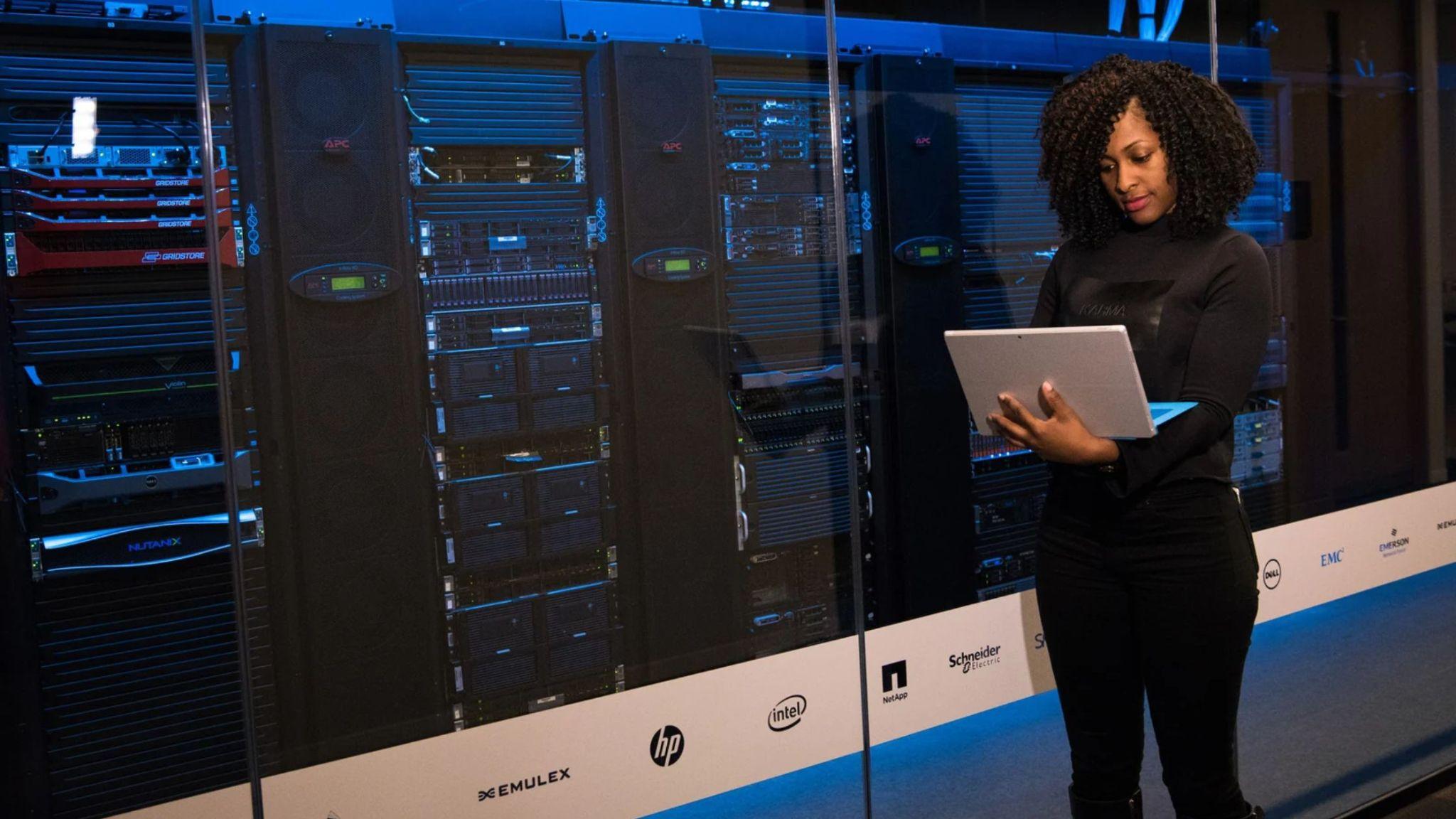
When you rent a dedicated server, you will have access to the computing power of one particular machine. This means that its CPU, RAM, and storage capacity will be yours to use. The cost per month is usually fixed, although it depends on the provider and on the configuration you choose.
When looking for a cheap dedicated server, there are several things to check to ensure that the option fits your needs:
- CPU and RAM. Make sure that the configuration provides sufficient processing power to run multiple applications at once.
- Disk capacity. Pay attention to the drive type and total disk capacity, especially if you are going to work with large files.
- Network connection. Check the available bandwidth and the monthly traffic allowance.
For instance, one machine can host internal CRM solutions, process suppliers’ price lists, and prepare scheduled reports. However, there will be some fixed hardware limitations. If the load increases, you may need to change the configuration or even the machine.
How to Compare Cloud and Dedicated Server Costs
To see if a transition to a dedicated server will help you save money, compare the total cost of both solutions for the same time period. You may take twelve months for this calculation.
- Add up your cloud expenses. Take your invoices for the past three months and find the average monthly cost, including discounts. Multiply the figure by twelve. If there are significant fluctuations, take a longer period.
- Check the server rental cost. Establish the cost per month and any changes in price when the contract ends. Calculate the total cost for twelve months.
- Factor in maintenance. Include server management, regular backups, software licenses, and other necessary services. If you need protection in case of hardware failure, estimate the cost of a secondary server or another recovery solution.
- Calculate the migration cost. Estimate how much you will pay for transferring your applications and data. This amount should be separated from the costs that will be charged every month.
- Compare the totals. If the monthly cost of a dedicated server is lower, divide the migration cost by the monthly savings to find out how many months it will take to recover this expense.
Test Your Applications Before Moving to a Dedicated Server
Before you decide to transfer your workloads to a dedicated server, make sure they will be able to operate properly outside your current cloud environment. The procedure can be performed in the following sequence:
- Measure workload resource consumption. Look into CPU and RAM utilization over 60–90 days and compare their average values with peaks to assess the real computational load of your applications.
- Check disk and network load. Determine how much data your systems read and write to disk and how much outgoing traffic they generate each month.
- Discover cloud service dependencies. It is necessary to find out if there are any databases, cloud storage services, or other managed services used by your applications that will have to be connected separately after the migration.
- Install a test application. Move one of your noncritical applications to a suitable dedicated server and let it function under normal conditions for two weeks.
- Analyze test results. Perform an analysis of the application’s performance, response time, number of errors, and consumed resources. If the test is successful, you can proceed with migrating the remaining workloads.
Choose Infrastructure That Matches Your Work
It does not always make sense to move all your applications from the cloud. While some may take advantage of its flexibility, others may be better suited to running on a dedicated server at a lower cost.
You could begin with those that are easy to transfer and leave the others in the cloud. There is no need to overhaul your entire IT infrastructure. A gradual migration will give you a chance to evaluate whether the new setup suits your needs.