
7 Easy Ways to Recover Corrupted USB Drive in Windows
A frequent problem that might erase your data, make it unreadable or inaccessible, is USB drive corruption. But you might wonder here how to be sure that your flash disk is corrupted, and if it is, can you recover a corrupted USB?
Everything you have to know, the main symptoms indicating your USB is broken, and the primary causes are covered in this 2025 guide. We’ll also share 7 practical approaches depending on different scenarios to recover corrupted USB drive. In addition, we’ll give you some useful advice on how to avoid future USB corruption!
Part 1: What Causes a USB Drive to Get Corrupted?
USB disk corruption could be caused by the following reasons:
- Unplugging the USB before the files finish transferring can damage data, and always use “safely remove.”
- Malfunction of the file system or improper formatting may render the files inaccessible.
- Data can be corrupted or concealed by viruses or malware.
- Bad formatting or folder structure bugs can cause file issues.
- Power surges may damage stored data.
- The drive can be destroyed by physical damage (broken components, moisture, extreme temperatures of heat/cold).
Part 2: What Symptoms Show That a USB Drive Is Corrupted?
You can know a flash disk is corrupted by the following signs:
- You have faults like “Drive not accessible” or “Please insert a disk.”
- The USB drive shows as RAW or asks to be formatted.
- Files appear or disappear randomly when reconnecting the drive.
- The USB drive operates slowly or freezes often.
- Automatically, the flash disk disconnects and reconnects.
- The flash disk displays the incorrect size, e.g, 0 bytes, for instance.
- The flash disk is read-only. Therefore, you cannot remove or add files.
Part 3: How to Recover Files From a Corrupted USB Drive?
Here’s how to recover files from corrupted USB drive in 7 ways with and without software, based on your situation:
Fix 1: Use a Free USB Data Recovery Tool
If your USB drive is corrupted but not overwritten yet, you can employ a free data recovery tool to get back the files. 4DDiG Data Recovery is the best software to recover files from corrupted USB drive with a high retrieval rate. Here are this tool’s key features at a glance:
- This tool can extract missing data from hidden, formatted, inaccessible, or virus-ridden storage mediums, be it internal or external.
- This application can recover misplaced data, which can be due to system crashes, missing partitions, and unbootable drives etc.
- The tool supports over 2,000 file types, including audio, video, photos, RAW files, documents, etc.
- The application is able to store files of popular USB brands such as Kingston and SanDisk, PNY, Samsung, and many others.
Follow the steps beneath to employ the best software to recover files from corrupted USB drive:
Step 1: Attach your corrupted flash disk to your computer. Then, execute the corrupted flash drive recovery on the same PC.
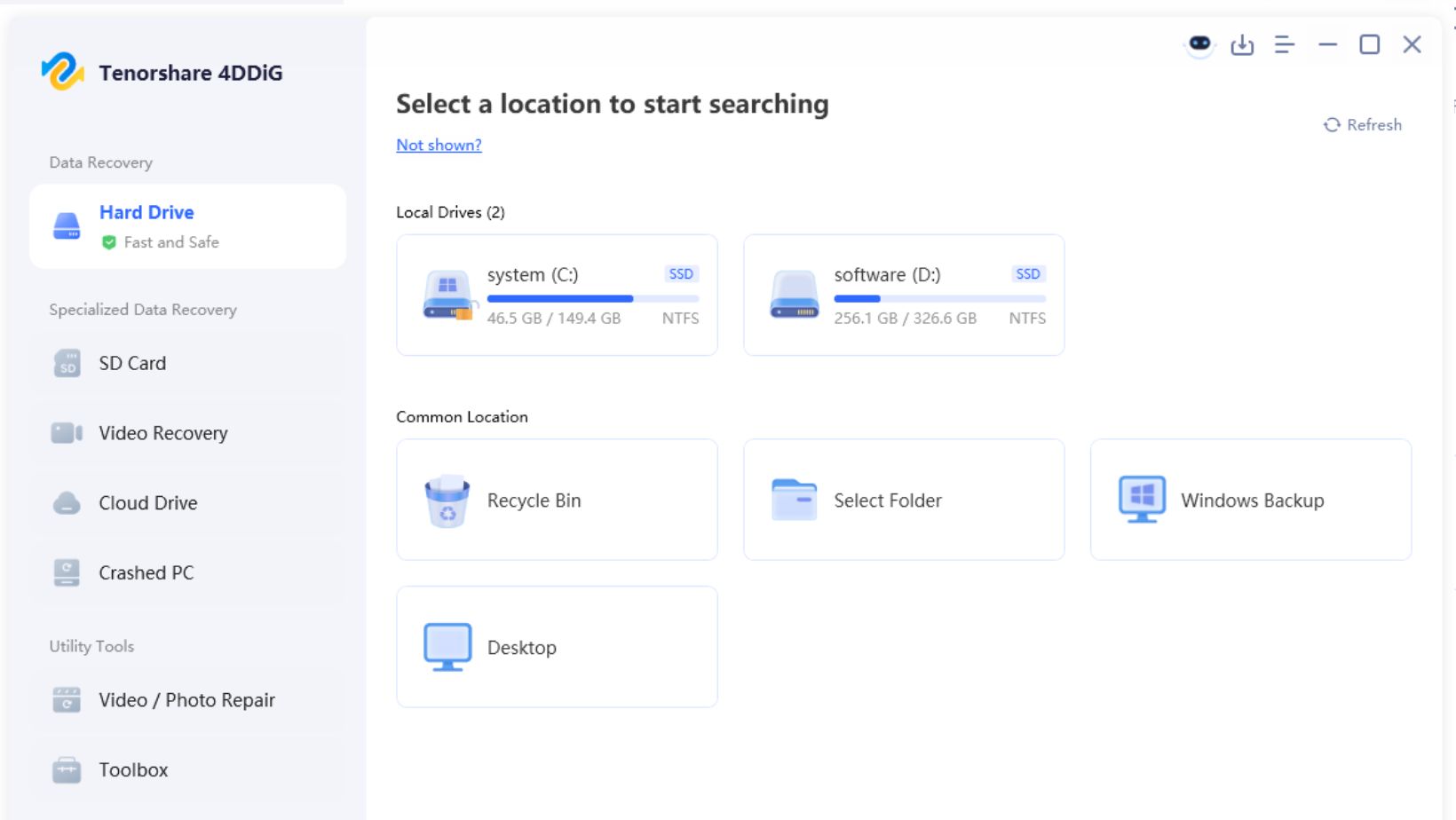
Step 2: Choose the file formats you want back. Then, start the scan. After this, you can pause or stop the scan to check the recovered files. Adjust tags or input keywords to locate exact matches.
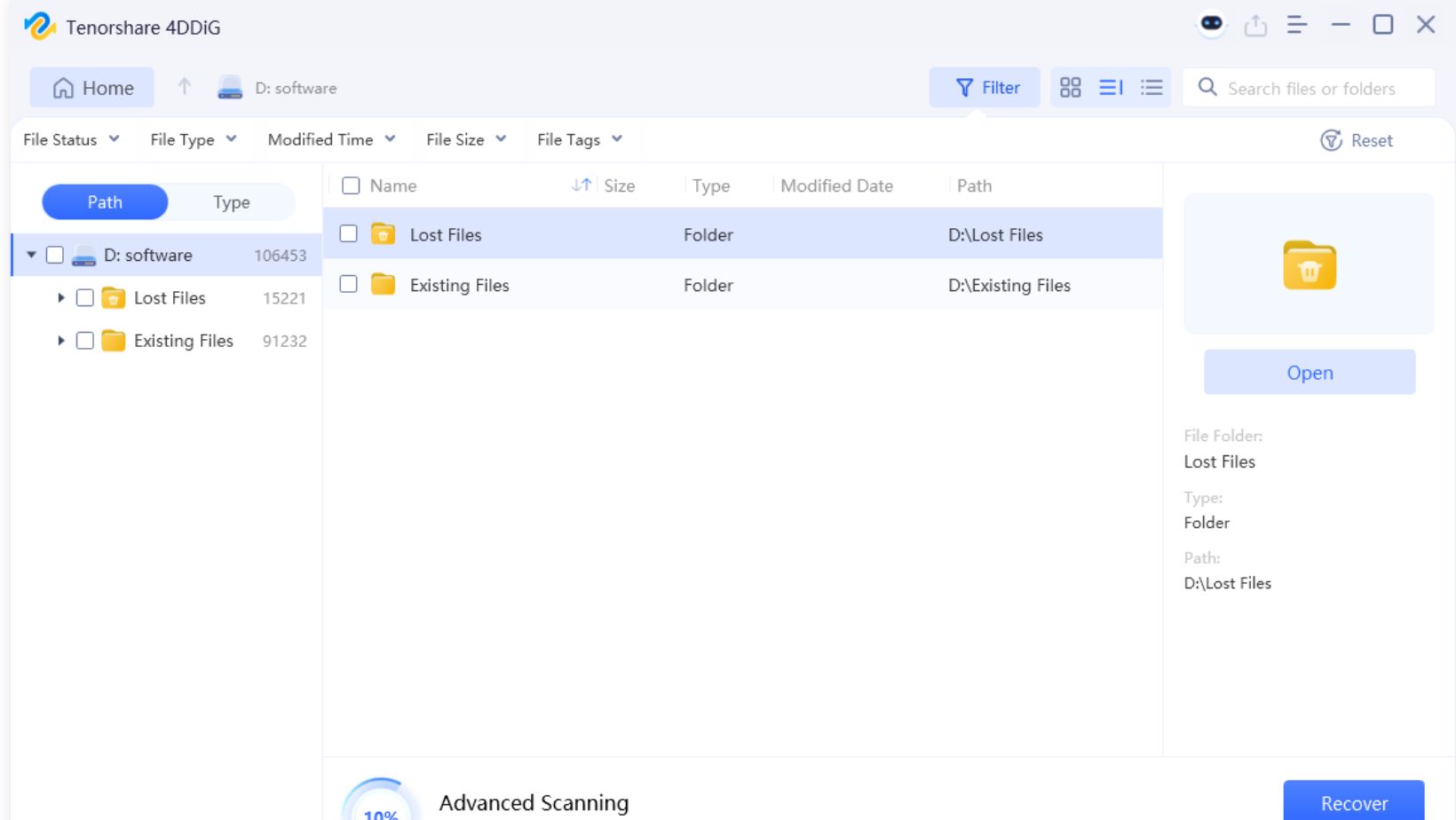
Step 4: After your desired files are back, tap “Recover.”
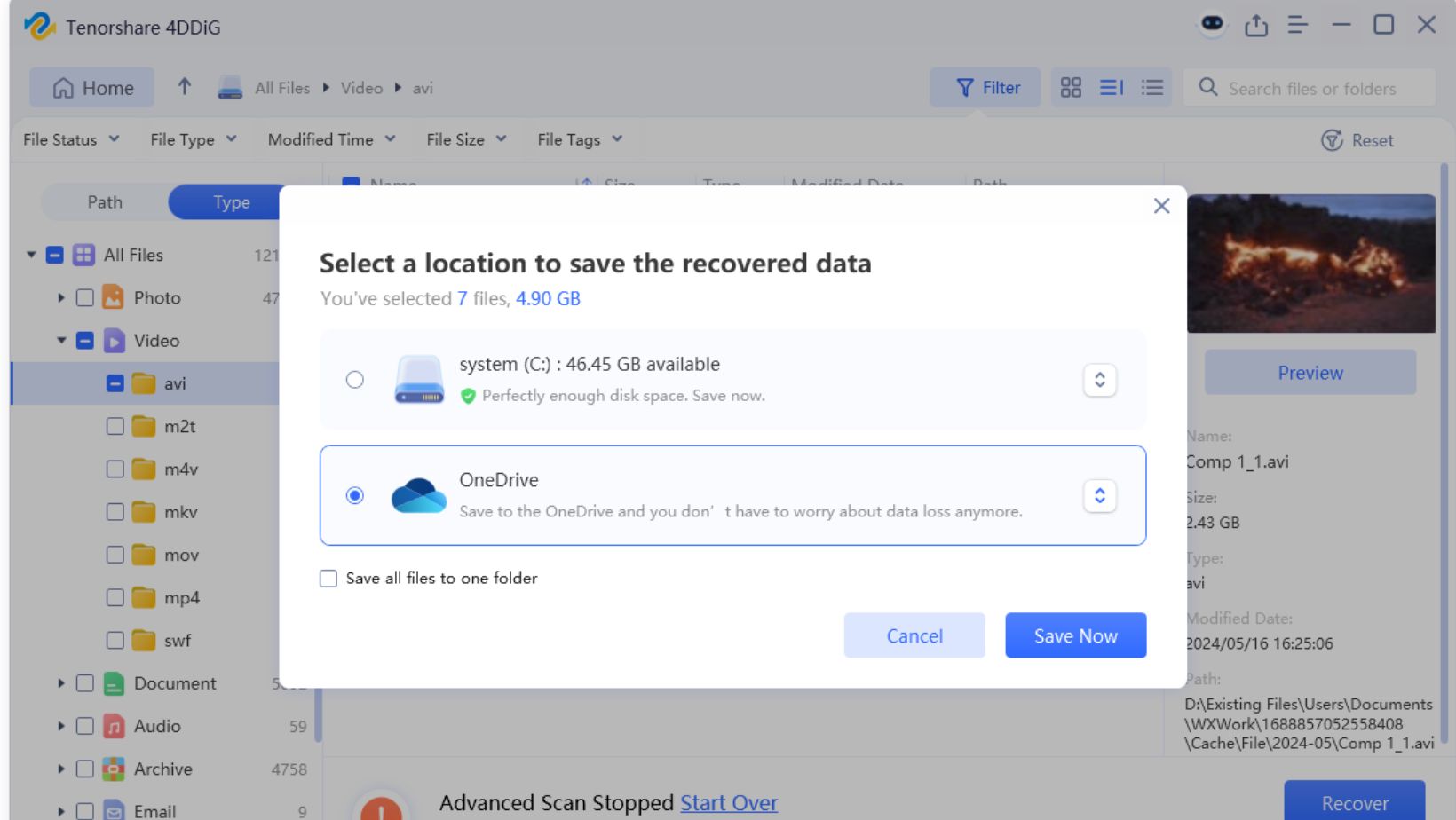
This will recover data from corrupted USB drive and move it to a secure place on your computer or cloud drive.
Fix 2: Look for Backup Copies of Corrupted USB Drive
In case your flash disk files are overwritten, then corrupted flash drive recovery is only viable if you have a backup. So, check your cloud storage accounts like Google Drive, OneDrive, or Dropbox.
You may have copied your USB files there. Also, search your computer for copies of the files or use built-in backup tools like Windows “Backup and Restore.” If you’ve used an external hard drive or a NAS device for backups, look there as well.
Fix 3: Repair Corrupted USB via CMD
You can also recover corrupted USB drive with a CMD command like CHKDSK. Well, fix the corruption to be precise, as CHKDSK can’t retrieve data. After eradicating the corruption, you can recover data from corrupted USB drive with software. Here’s what to do:
Step 1: Attach your corrupted flash disk to your computer. Then, type “cmd” in the Windows search. Next, execute “Command Prompt.”
Step 2: Type the following command. Hit “Enter” afterward:
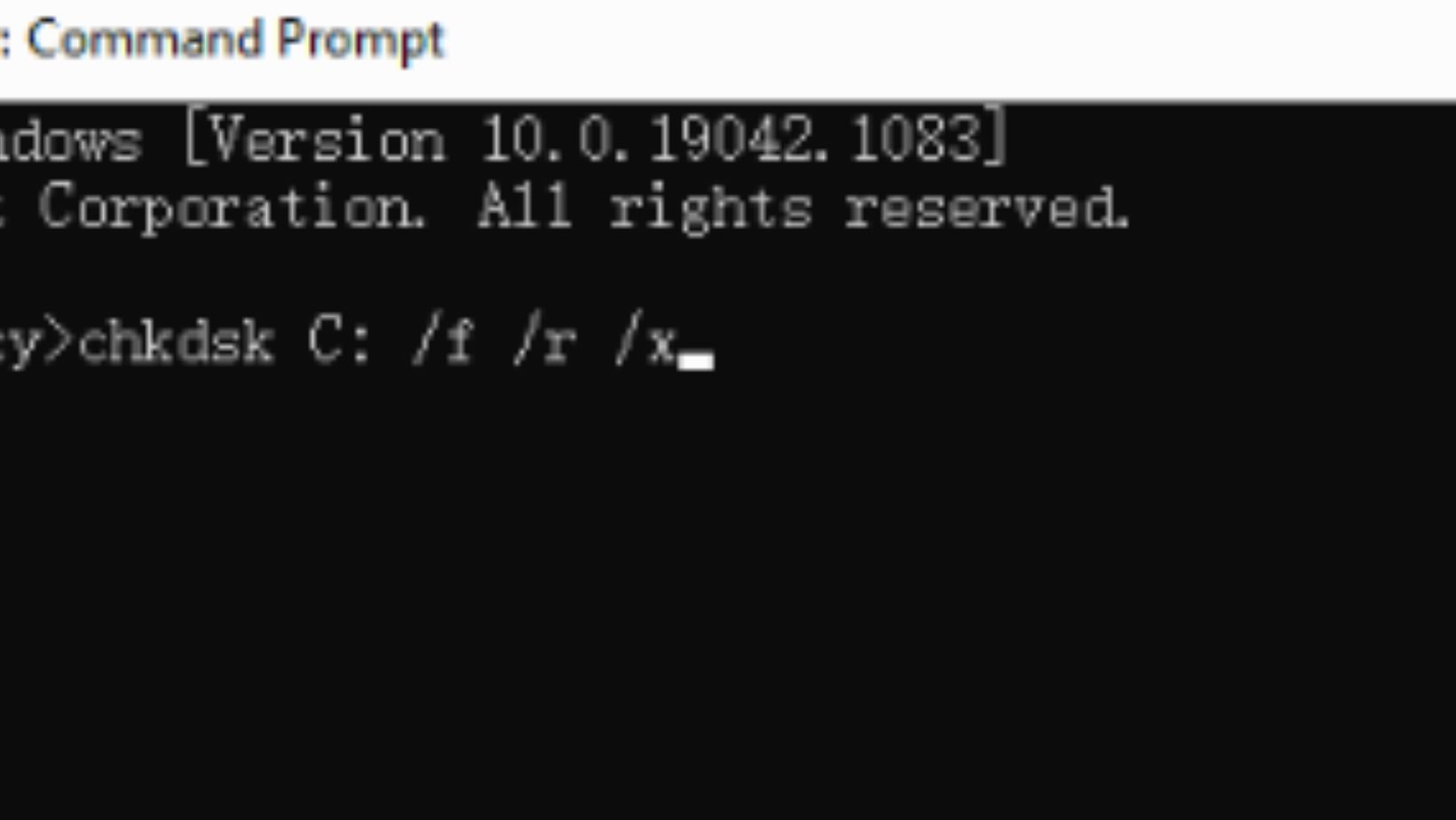
- chkdsk [Here place the USB’s drive letter]:/f /r /x
Fix 4: Assign an Unused Drive Letter
Your USB disk might not be corrupted, actually, and instead, its designated letter could have a conflict with another drive’s letter. Thus, you must give your flash disk an unused drive letter. Here’s how to recover files from corrupted USB drive:
Step 1: Attach your corrupted flash disk to your computer. Right-click the “Windows Menu.” Then, tap open “Disk Management.”
Step 2: Right-click your believed to be corrupted flash disk. Next, click “Change Drive Letter and Paths.” Tap “Add.”
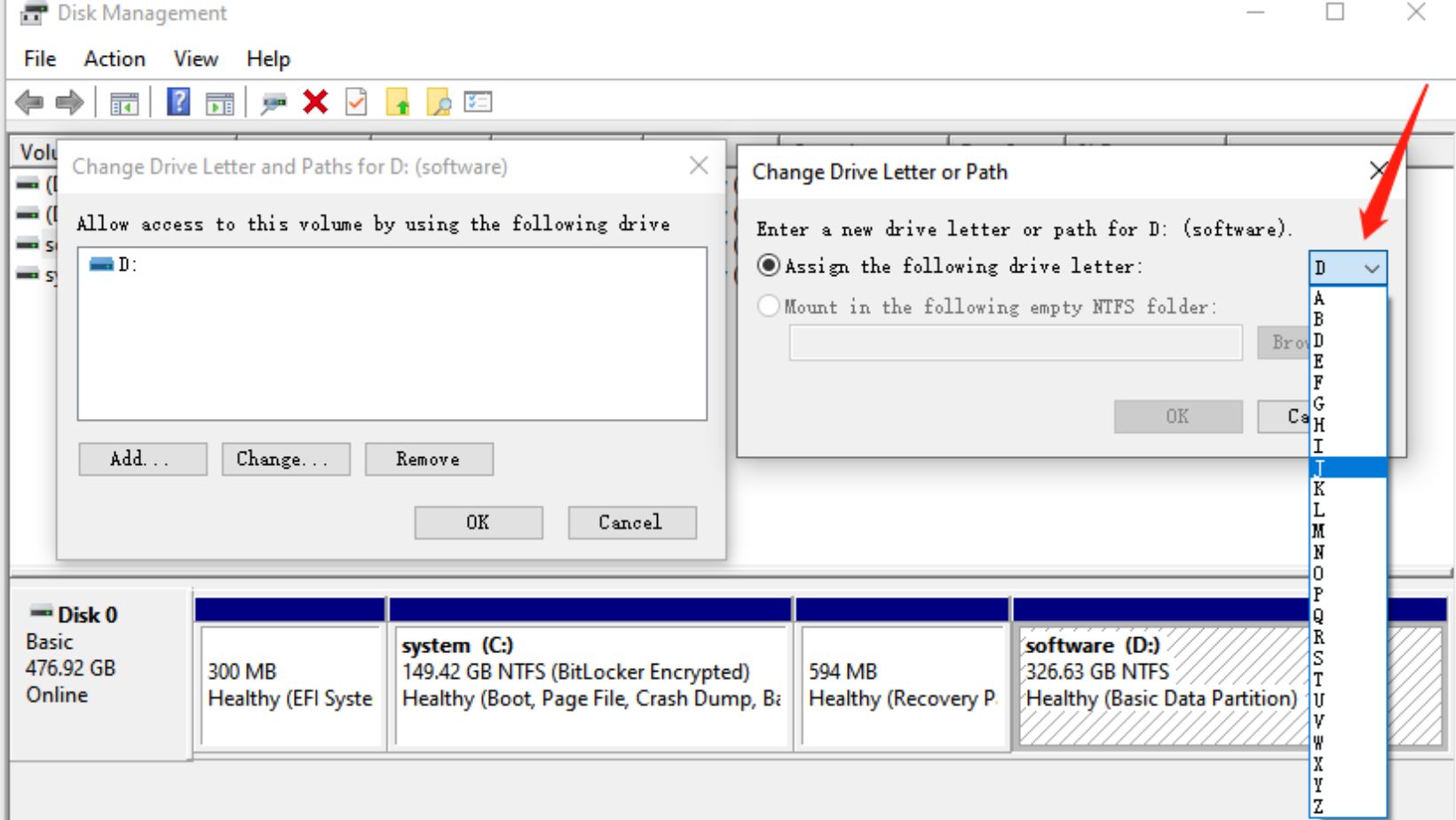
Step 3: Pick a new and unused drive letter from the drop-down menu. Hit “OK.”
Fix 5: Run the ATTRIB Command
Once more, if you can see the files but can’t access them, your flash drive may not be corrupted. This could happen if a virus triggers the USB read-only mode. Therefore, to recover data from corrupted USB drive, you can use a CMD command like ATTRIB to eradicate the read-only and hidden characteristics.
Nevertheless, this command will not retrieve files that have been heavily corrupted, RAW, formatted, or are just missing from the flash disk. The following is how to recover files from corrupted USB drive employing the ATTRIB command:
Step 1: Attach your corrupted flash disk to your computer. Then, type “cmd” in the Windows search. Next, execute “Command Prompt.”
Step 2: Type the following command. Hit “Enter” afterward:
- attrib -h -r -s /s /d [Here place the USB’s drive letter]:\ *.*
Fix 6: Use Hardware & Devices Troubleshooter
The USB could have a hardware or driver malfunction, and you think it could be corrupted. In such a situation, you can employ the Hardware and Device Troubleshooter. It is a Window. embedded utility that is capable of resolving minor hardware problems.
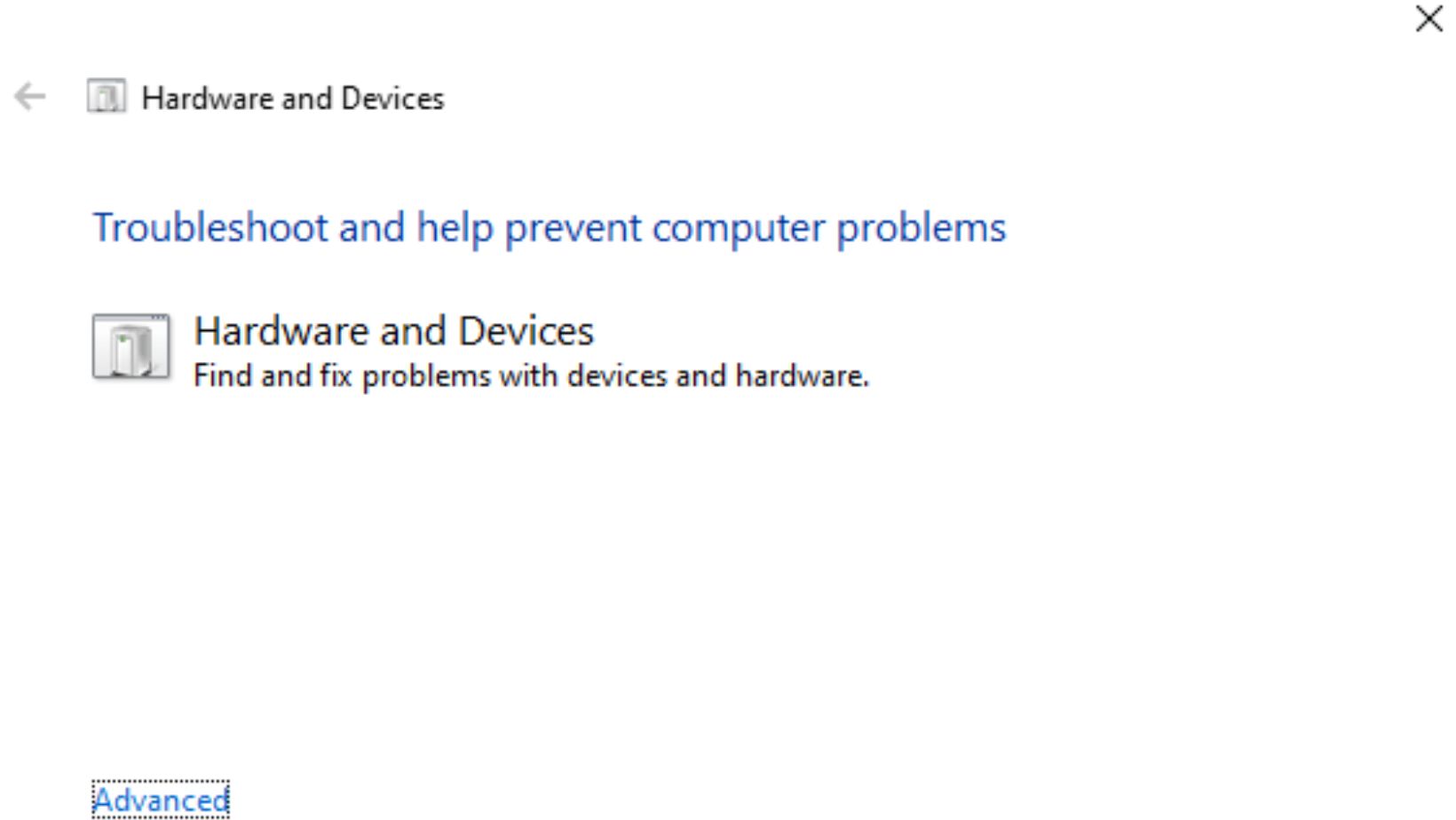
Once, resolved, it’s viable to retrieve data from a flash disk. Here’s how to recover files from corrupted USB drive with the Hardware and Device Troubleshooter:
Step 1: Attach your corrupted flash disk to your computer. Then, type “Windows + R” in the Windows search. This will open the “Run” dialog.
Step 2: Type “msdt.exe -id DeviceDiagnostic.” Hit “Next” afterward:
Step 3: The Troubleshooter will scan for hardware problems that might be resulting in the USB corruption. After repairing the flash disk, you can retrieve its files.
Fix 7: Contact Data Recovery Services
The best software to recover files from corrupted USB drive might not always do its job. It could also be that you don’t have a backup, or the files are not hidden or read-only, and the USB is heavily corrupted. In that case, contact data recovery services. They can repair your corrupted flash disk and retrieve files from it with their tool and professional expertise.
Part 4: How Can I Safeguard My USB Drive From Corruption?
The following precautions will help you to future-proof your flash drive against damage:
- When unplugging, always go safely by removing hardware so that you do not lose any data.
- During the transfer of files, do not pull out the flash disk.
- Be careful with the USB drive and avoid dropping, bending it, or exposing it to water, heat, or cold.
- Scanning the flash disk frequently with modern antivirus software.
- In order not to make errors, leave a portion of the USB drive unused.
- Formatting the flash disk, be it FAT32, exFAT, or NTFS, should be done properly and should not be interrupted in the process.
- In storms or power outages, turn off and use a surge protector.
- Always save your USB data in your computer, in the cloud, or in another drive.
Conclusion
We’ve responded to your queries regarding, “Can you recover a corrupted USB, and if yes, how,” in the best way possible. Flash disks can get corrupted, and the numerous signs of corruption might materialize as missing files, slow performance, or the drive not showing up.
You can recover corrupted USB drive from a backup if you have one, or employ CHKDSK to repair the disk or ATTRIB to eradicate the read-only attributes. However, when there is no backup, the USB is inaccessible, so consider using such a tool as 4DDiG Data Recovery.